
If your mouse suddenly stops responding in Windows 11 — such as not moving the pointer or not clicking — it can disrupt your workflow.
In most cases, however, this kind of problem can be resolved by checking basic settings and configurations.
In this guide, we’ll walk through common causes and step-by-step solutions to fix a mouse that won’t respond in Windows 11.
🧠 First: Things to Check Before Troubleshooting
1. Check the Mouse Hardware & Connection
- If you use a USB mouse, try plugging it into a different USB port.
- For wireless mice, verify battery level and ensure the USB receiver is securely connected.
- Connect the mouse to another PC to make sure the mouse itself is working.
2. Confirm Basic System Inputs Still Work
Determine whether only the mouse isn’t working or if the entire system is unresponsive.
If the touchpad or keyboard still works, Windows itself is running — it’s likely a peripheral or settings issue.
⚙️ 1. Windows 11 Settings Could Be Causing It
Check Mouse Settings
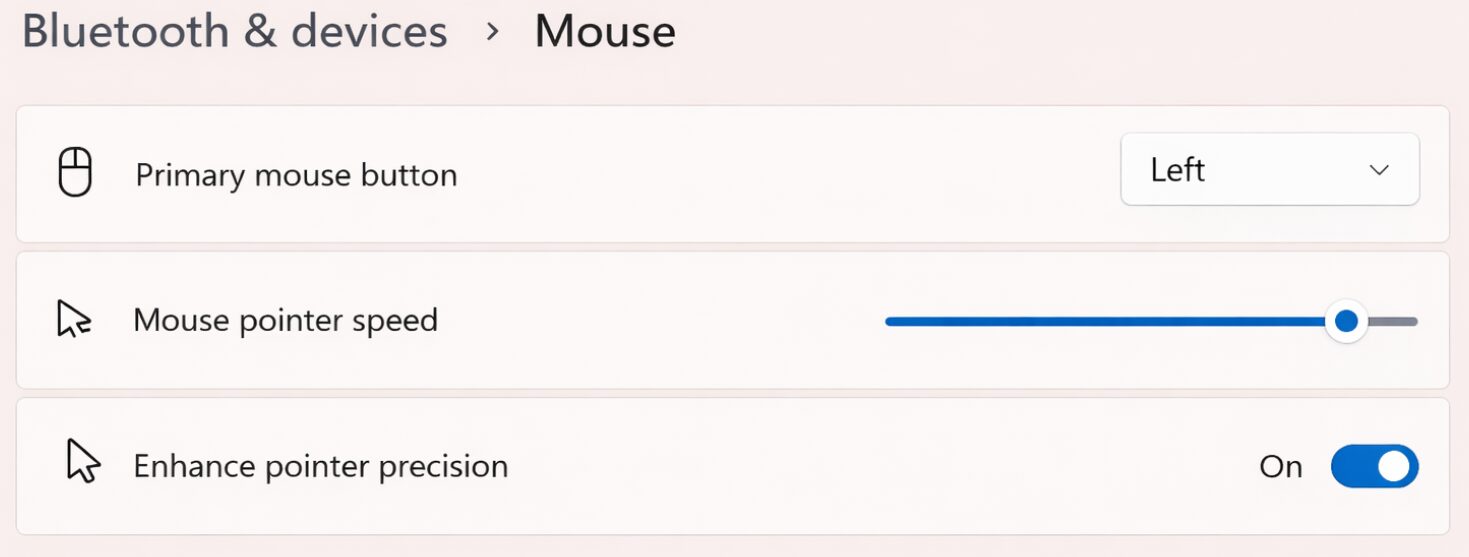
- Open Settings → Bluetooth & devices → Mouse.
- Make sure the primary mouse button is not set incorrectly (Left/Right switched).
- Check pointer speed and other settings to confirm nothing is extreme or misconfigured.
Check Device Manager
- Right-click the Start button and open Device Manager.
- Expand Mice and other pointing devices.
- If you see a warning icon, it could indicate a driver problem.
🧰 2. Driver Issues & Updates
Reinstall the Mouse Driver
- In Device Manager, right-click your mouse.
- Select Uninstall device.
- Restart your PC — Windows 11 will automatically reinstall the driver.
Run Windows Update
Outdated system files or missing updates can cause peripherals to malfunction.
Go to Settings → Windows Update and install all available updates.
Tip: In addition, updating or rolling back drivers via Device Manager often solves mouse issues. If you encounter issues after an update, try rolling back the driver or installing the latest optional driver updates.
🔄 3. Temporary System Glitches
Restart Your Computer
This classic fix often resolves temporary system bugs that affect device input.
Disable Fast Startup
- Open the Control Panel → Power Options.
- Click Choose what the power buttons do.
- Uncheck Turn on fast startup.
- Restart and check if the mouse works correctly.
🔋 4. Wireless Mouse Specific Checks
A common cause of unresponsive wireless mice is low battery or weak signal:
- Even if the mouse still appears connected, low batteries can cause sporadic movement, freezing, or non-responsiveness.
- Try replacing or recharging the batteries, and confirm correct battery orientation (+/−).
Note: In some wireless models, connection issues — including Bluetooth pairing problems — can also cause the mouse to disconnect or not respond. Restarting Bluetooth services and re-pairing may help.
❗ 5. When All Else Fails: Advanced Steps
Try a Different Mouse
Connect a different mouse to check if the problem is with the original device or the system.
Remove Recent Software/Drivers
Sometimes newly installed software or drivers interfere with device operation. Remove recent installs and test again.
Use System Restore
If the issue started recently and nothing else works, consider using System Restore to roll back to a previous stable state.
🧾 Summary
Even when a mouse suddenly stops working in Windows 11, following these steps — from checking the connection and settings, through reinstalling drivers, to advanced fixes like System Restore — will resolve most issues.
Go step by step, and you’ll likely fix the problem without needing to panic.


