
If Windows 11 doesn’t recognize your headphones, the most common causes are incorrect output device settings, disabled devices, or audio driver issues. First check the sound output and Device Manager to ensure the correct headphones are enabled.
Main Causes Why Headphones Are Not Detected
| Cause | Description |
|---|---|
| Output is set to another device | Sound is playing through speakers or HDMI |
| Device is disabled | Disabled in sound settings or Device Manager |
| Audio driver issues | Driver is corrupted or outdated |
| Bluetooth connection errors | Pairing failed or incorrect audio profile |
| Physical connection problems | Faulty jack or broken cable |
Basic Checks (Must Do First)
- Reconnect your headphones.
- Restart your computer.
- Try a different USB port or audio jack.
- Test another pair of headphones.
If headphones still aren’t detected, proceed with the following steps.
Check Default Audio Output (Sound Output Settings)
- Right-click the Start button → Settings
- Go to System → Sound
- In the Output section, check if your headphones are shown
- If shown, select the headphones as the output device
If they are not shown, continue to the next checks.
Check if the Headphone Device Is Disabled
- Open Settings → System → Sound
- Select Advanced sound options → All sound devices
- Look under Output devices
- If the headphones are labeled Disabled, select them and click Enable
Check Audio Devices in Device Manager
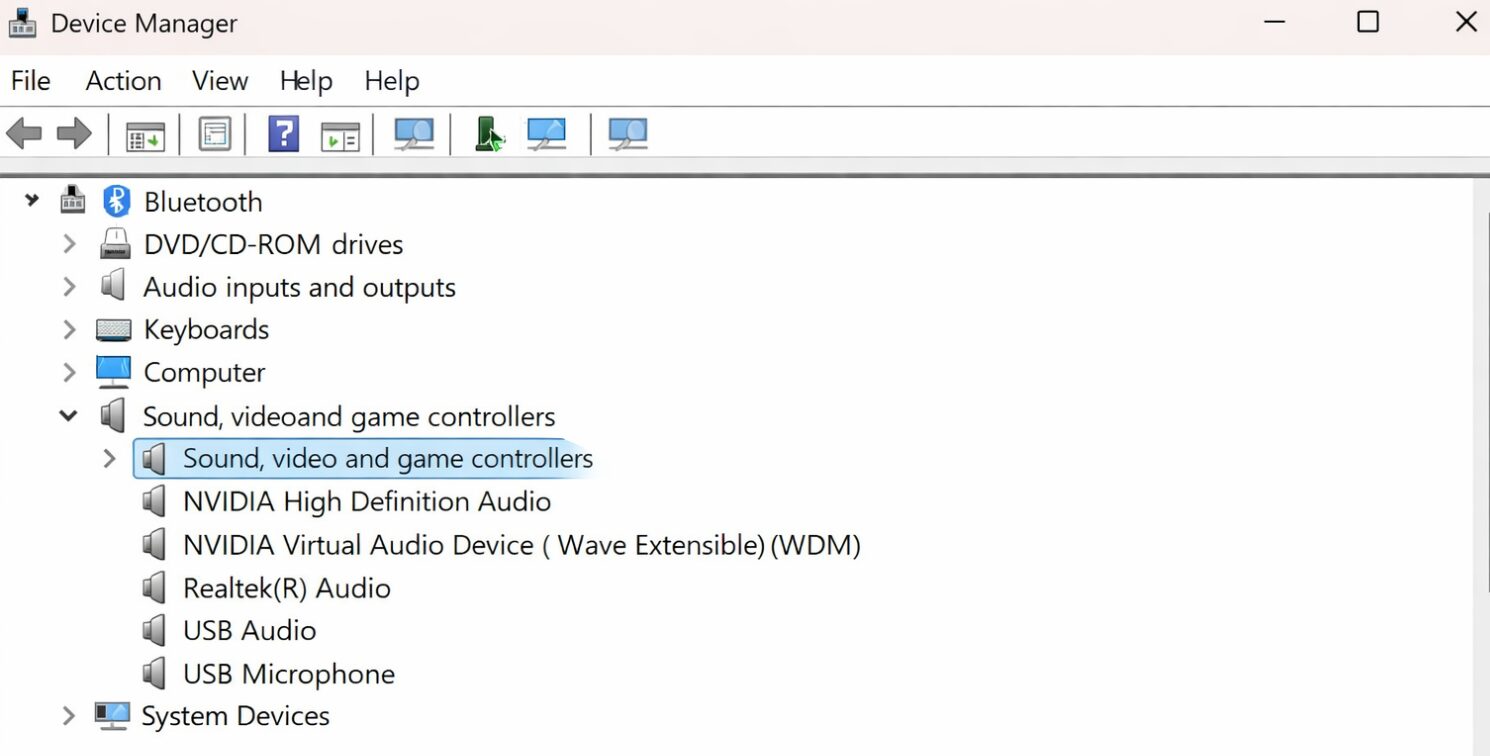
- Right-click Start → Device Manager
- Expand Sound, video and game controllers
- Look for audio devices such as Realtek(R) Audio, High Definition Audio Device, or Bluetooth headphone name
If not shown, click View → Show hidden devices and check again.
How to Update Audio Drivers
- In Device Manager, right-click your audio device
- Select Update driver → Search automatically for updated drivers
- If no update is found, uninstall the driver and restart your PC — Windows will reinstall it automatically.
Use the Sound Troubleshooter
- Open Settings → System → Sound
- Select Troubleshoot
- Follow the on-screen instructions to let Windows detect and fix audio issues automatically.
Fix Bluetooth Headphones Not Being Detected
Check Connection Status
- Open Settings → Bluetooth & devices
- Confirm the headphones are shown as Connected
- In System → Sound → Output, set the Bluetooth headphones as the output device
- For headsets with a mic, ensure the Stereo profile (not Hands-Free) is selected.
What to Do for Wired Headphones That Are Not Recognized
| Check Item | Detail |
|---|---|
| Connector type | 3.5mm jack or USB |
| Adapter cables | Microphone splitter needs correct connection |
| Front/Rear jacks | Try both front and rear ports |
On laptops, the audio jack failure itself is sometimes the cause.
When Headphones Stop Being Detected After a Windows Update
- Open Settings → Windows Update
- Review the update history
- If the issue started after an update, prioritize updating audio drivers first.
Frequently Asked Questions (Q & A)
- Headphones do not appear at all in sound settings — what should I do?
-
Check Device Manager to confirm the audio device is listed. If not, the driver may be problematic. Try enabling hidden devices.
- Bluetooth connects but no sound plays.
-
The output may still be set to speakers. Select your Bluetooth headphones under System → Sound.
- Only one ear is heard.
-
Go to Settings → Accessibility → Audio and ensure Mono audio is disabled.
- Headphones suddenly stopped being detected.
-
If this happened after a Windows update, audio driver issues are likely. Update or reinstall the driver.
- Headphones stay plugged in but sound still plays from speakers.
-
Manually select Output → Headphones in sound settings. If Windows still doesn’t switch, update or reinstall audio drivers.
Summary
Most cases where Windows 11 fails to detect headphones can be resolved by checking the output device settings, ensuring the device is enabled, and updating or reinstalling audio drivers. If the issue persists even after these checks, a hardware failure — such as a broken headphone jack — should be considered.