
Windows 11 users sometimes experience situations where no sound comes from the speakers or headphones — even when everything seems set up correctly. This can happen after updates, Bluetooth connections, or unexpected settings changes. The steps below help you identify and solve the issue.
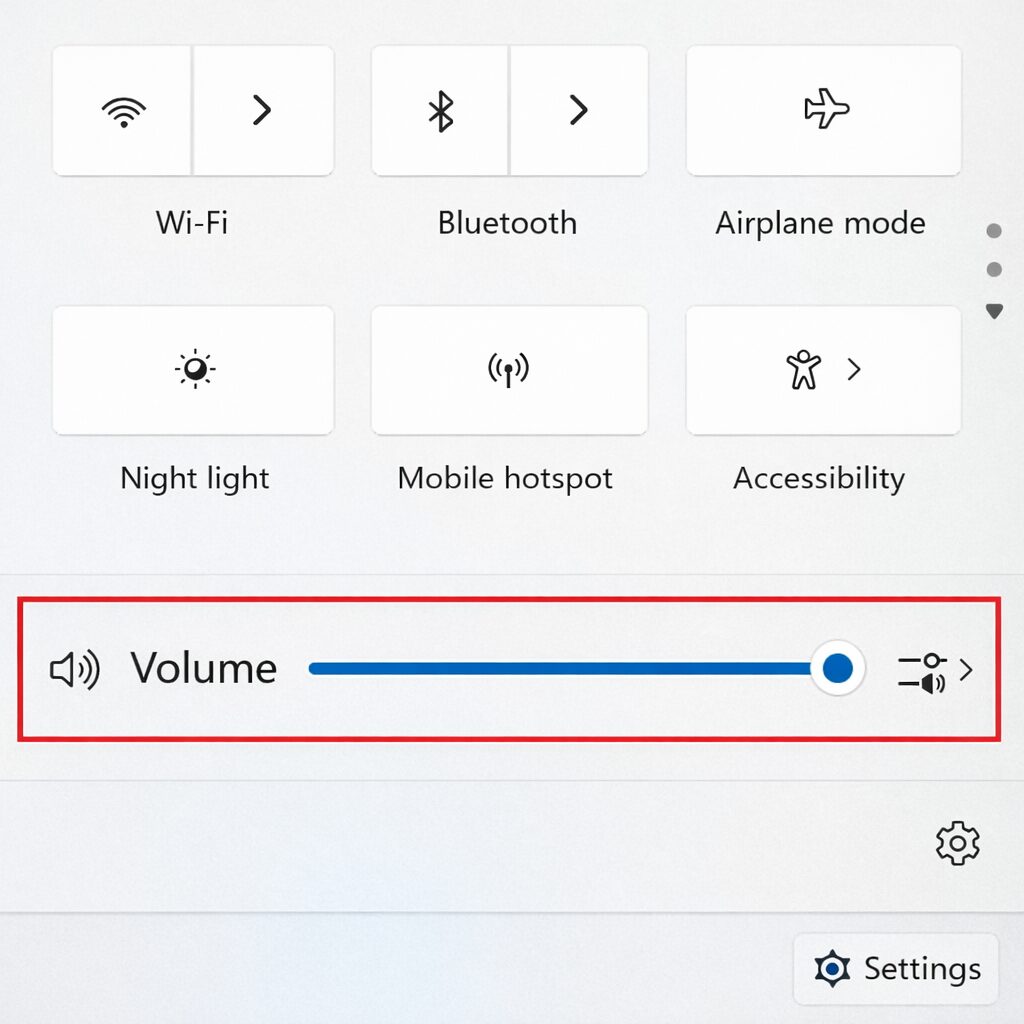
1. Check Volume & Mute Settings
First, make sure the basics are correct:
-
The volume is not muted.
-
The volume level isn’t set to zero.
-
Individual app volumes (e.g., Zoom, Spotify, browsers) aren’t muted.
You can click the speaker icon on the taskbar to adjust volume and open the volume mixer to check app-specific levels.
2. Verify Audio Output Device
A very common cause of “no sound” is the wrong audio output device being selected.
Steps:
-
Go to Settings > System > Sound.
-
Check the Output section.

-
Ensure your actual speakers or headphones are selected as the output device.
For example, your PC might be sending audio to a monitor or a Bluetooth device in an unintended mode.
3. Bluetooth Headphones Issues
Bluetooth devices can show up in multiple modes (e.g., Stereo vs Hands-Free).
If sound doesn’t work with Bluetooth:
-
Remove the device in Settings > Bluetooth & devices.
-
Reconnect it.
-
Make sure the stereo audio profile is selected, not a low-quality call profile.
4. Restart Windows Audio Services
Audio services can stop due to errors or updates:
-
Press Win + R, type
services.msc, and press Enter. -
Find Windows Audio and Windows Audio Endpoint Builder.
-
Right-click and choose Start/Restart if they are not running.
This can restore sound if the audio service itself stopped.
5. Update or Reinstall Sound Drivers
Driver problems are a frequent cause of no sound in Windows 11:
-
Outdated or corrupted audio drivers can prevent audio output.
Fix:
-
Open Device Manager (Win + S → type Device Manager).
-
Expand Sound, video, and game controllers.
-
Right-click your audio device → Update driver.
-
If updating doesn’t work, choose Uninstall device and reboot your PC — Windows will reinstall the driver automatically.
6. Check for OS or Hardware Conflicts
If sound still isn’t working:
-
Try running the built-in troubleshooter:
Settings > System > Troubleshoot > Other troubleshooters > Run next to Audio troubleshooter. -
Verify all cables and speaker power are connected correctly.
-
If using Bluetooth, ensure the device is paired correctly and has the right audio profile.
-
In rare cases, deeper fixes such as BIOS settings or Windows System Restore might be needed.
7. HDMI Output or App-Side Issues
Sometimes the sound is routed through:
-
An HDMI monitor or TV (without sound).
-
App-specific audio settings (e.g., certain tools can override default output).
Verify that:
-
The correct output device is selected both in Windows settings and in the app itself.
Summary
| Problem Scenario | Likely Fix |
|---|---|
| No sound at all | Check volume, unmute, verify output device |
| Bluetooth not working | Re-pair device and select stereo mode |
| No sound after update | Run troubleshooter or reinstall drivers |
| Services stopped | Restart Windows Audio services |
| App-specific silence | Check app audio settings |
If you’d like, I can also help with a concise printable PDF version of this guide or create step-by-step screenshots for each fix.


